


Whether you are dealing with a tabular image, a scanned invoice, or a screenshot of a report, converting it into an editable Excel table is actually much easier than you think.
Now, you don't have to manually type the image information line-by-line into Excel. This is because you can directly extract structured data from images and convert it into an editable Excel table by using the right methods and following simple steps.
In this blog post, we are going to cover these methods in complete detail, so hang around with us till the end.
Two Methods to Convert an Image into an Excel Table
Below, we are going to explain two methods for transforming an image into an Excel table in a step-by-step procedure.
Use Excel’s Data from Picture Option
Microsoft Excel offers a built-in OCR-powered feature known as “Data from Picture”. It works by automatically extracting numerical and textual data from the given image and converts it into an editable Excel table.
However, it is essential to note that the “Data from Picture” option is exclusively available in the Microsoft 365 Subscription plan.
Now, let’s understand how this feature can be used to convert a tabular image into Excel.
Steps to Follow
First of all, open a blank worksheet in your Excel (365 version). Now, click on “Data” in the ribbon tab and select the “From Picture” feature.
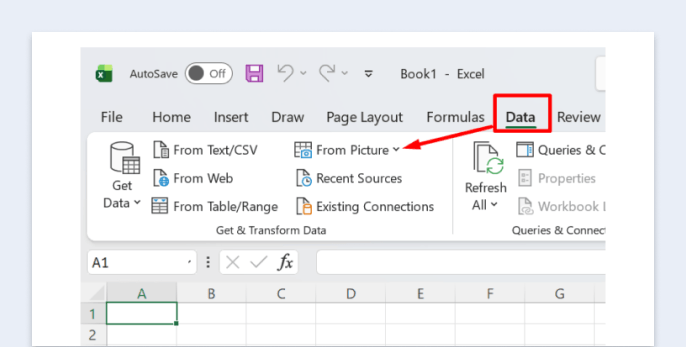
The “From Picture” feature will further provide two options: Picture from File or Picture from Clipboard. If the required image is saved in your local storage, then go with the first option. Conversely, if you have copied the photo, use the clipboard option.
After uploading the image, Excel will start analyzing it and ultimately provide a preview for review. So that you can ensure no details are missed or altered. If there are any, simply click on that specific cell, and a pop-up will appear allowing you to update data.
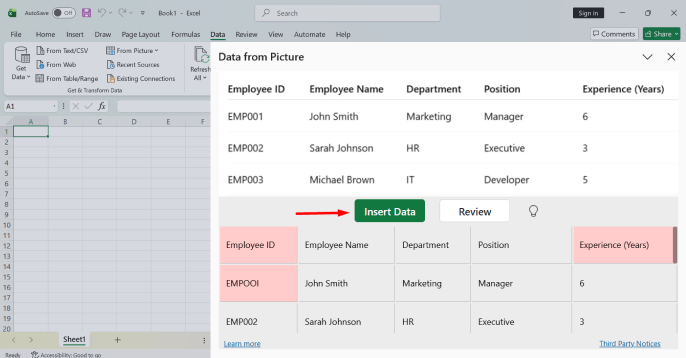
When you are satisfied with the preview, simply click on the “Insert Data” button, and the entire tabular data will be converted into a fully structured editable Excel table.
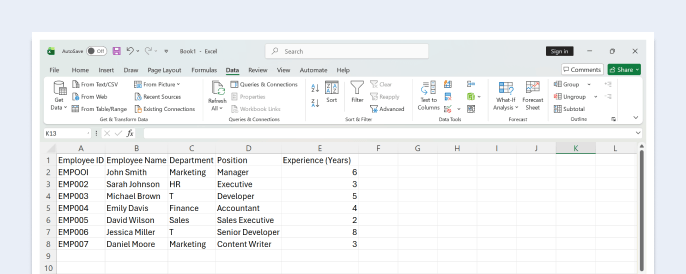
So, this is how you can convert an image into a well-formatted Excel table for easy editing and updating.
Use JPG to Excel Converter
Another quick and effective option to transform images into Excel tables is by utilizing a dedicated JPG to Excel converter. It is available for free and operates on OCR technology to extract text from images and convert it into Excel table.
The tool does not require signup/registration and is completely safe and secure. Users need to follow three steps: Upload the image, click the convert button, and review the output results.
Below, we have explained these steps in detail.
Steps:
Upload the required image to the JPG to Excel converter. This can be done through multiple ways such as dragging-and-dropping, directly pasting the picture, or loading manually from local storage.
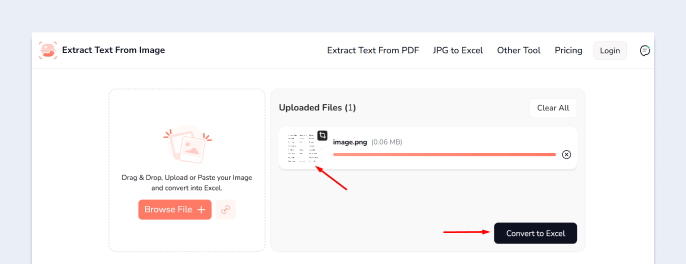
Now, click on the “Convert to Excel” button to start the conversion process.
The JPG to Excel converter will only take a few moments (depending on your internet connection, image size and server processing time) to come up with the extracted text in an editable table format.
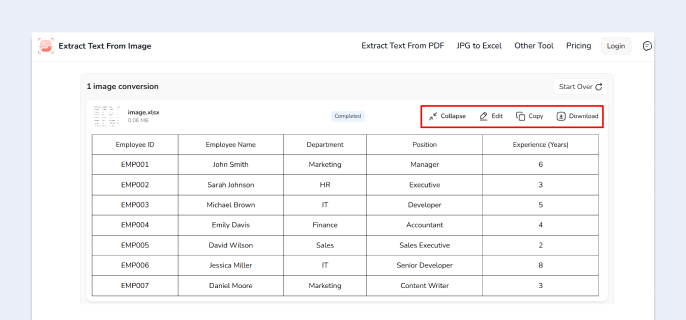
As you can see, the JPG to Excel converter has transformed the given image into an Excel table. Apart from that, it also provides options to edit, copy, or download the results for later use.
Wrapping It Up
Now there is no need to manually type image information one by one in an Excel table. This task can be quickly performed by following simple methods such as using Excel’s built-in feature or advanced JPG to Excel converters.
These allow users to quickly extract text from images and transform it into a well-formatted Excel table. This blog post has discussed a step-by-step procedure that you need to follow in this regard for both methods.
FAQs
What type of image works best for conversion?
Images that contain well-structured tabular data such as invoices, reports, and receipts work best for conversion.
Are highly technical skills required to perform image-to-Excel conversion?
Both methods (Excel’s built-in feature and use of online tools) are very simple and require only a few clicks to convert images into Excel.
What are some valuable tips to ensure effective image-to-Excel conversion?
You should try to process high-quality images containing well-structured tabular data. Besides this, always review the converted table to ensure it is error-free.


